
Code snippets
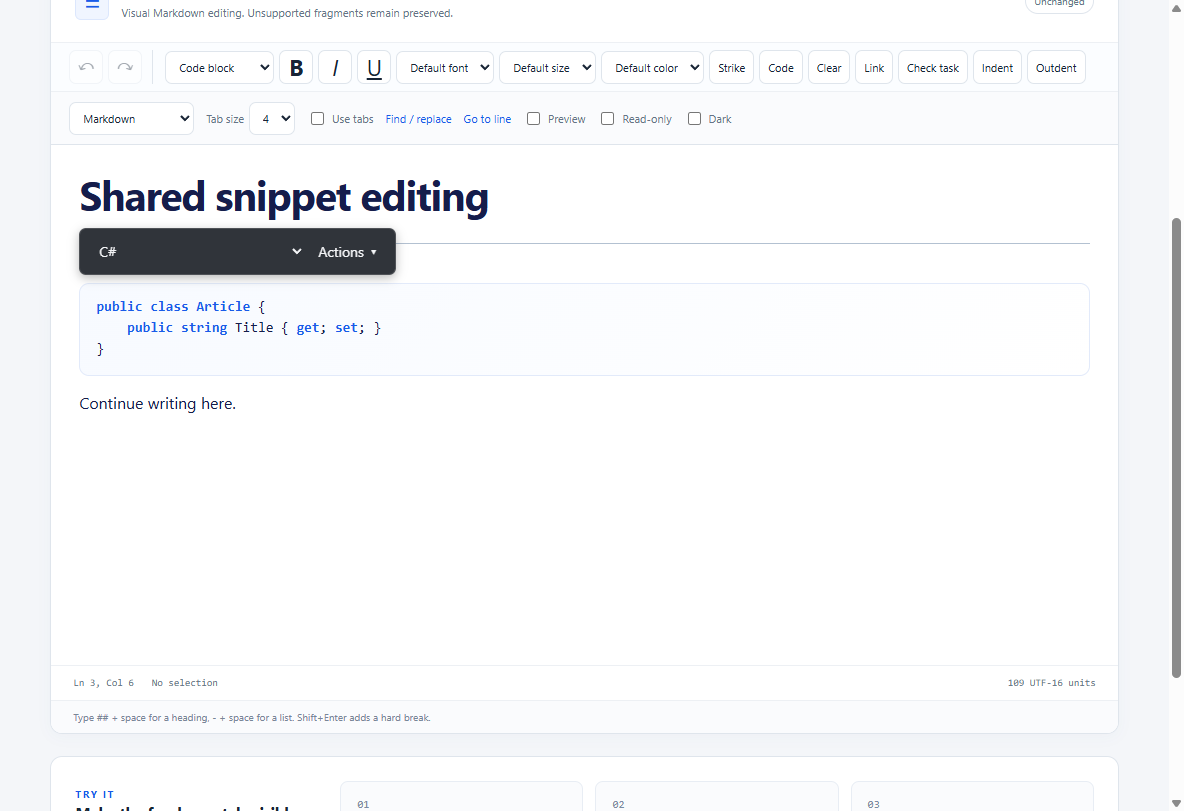
Use cs for C# snippets. Existing csharp and C# language aliases remain recognized.
In Visual mode, Tab and Shift-Tab indent or outdent the selected lines within a snippet,
respecting the configured tab width and tabs/spaces setting. A selection ending at the
start of the next line excludes that line. Source mode's Escape, then Tab still leaves
the editor; Escape inside a Visual snippet moves to the paragraph after it, creating
one when the snippet is the last block.
Visual snippets use the same automatic indentation and closing-brace alignment as Source snippets, including per-language widths and tabs/spaces settings. Multiline typing, replacement, and paste stay inside the same code block. Pasted text remains literal code rather than becoming headings, tables, images, or other rich content. Ctrl/Cmd+/ toggles line comments using the snippet's language in either view. Visual snippet line height is 1.5; Source spacing is configured separately.
To create a snippet in Visual mode, type three backticks and an optional language
(for example, ```cs without the surrounding spaces), then press Enter. Typing
the backticks alone does not convert the paragraph. Enter creates the code block,
places the caret inside it, and leaves an empty normal paragraph after it. Markdown
serialization includes the closing fence. The conversion is one undoable operation.
In both modes, the active snippet's toolbar floats above its top-left edge and uses the image toolbar's shared appearance. It disappears when the cursor leaves the snippet; using its language picker or Actions menu keeps the current snippet active. Toolbars clamp to the editor viewport and use a nearby fallback when there is no room above. The language picker groups common CODE Magazine languages above the remaining catalog. The common group includes C#, JavaScript, TypeScript, Python, PowerShell, Windows batch/cmd, SQL, JSON, HTML, XML, CSS, Bash, YAML, Markdown, Visual Basic .NET, and Visual FoxPro. This is a curated convenience list, informed by CODE's recent C#, Python, and Angular/TypeScript articles and the publication's usual web, data, and command-line formats.
Code typing in either mode aligns a closing } with its matching opening brace when the current
line contains only indentation. Braces inside strings and comments do not affect the
match. This applies to supported curly-brace languages, including C#, JavaScript,
TypeScript, JSON, PowerShell, C/C++, CSS, Java, Go, and Rust, and respects snippet fences.
JSON, HTML/XML, and YAML use two-space indentation by default. Other languages use
the configured TabWidth (four by default). These widths apply to Tab, Shift-Tab,
and automatic indentation after an opening brace. Override them per language:
editor.Options.LanguageIndentation = new() { ["json"] = 4, ["cs"] = 4 };
In JavaScript use languageIndentation: { json: 4, cs: 4 } at creation or in configure.
Widths may be 2, 4, or 8; an empty map restores the defaults. Tabs/spaces remain controlled
by IndentWithTabs. Closing braces preserve the opening line's actual whitespace.
Set editor.Appearance.SnippetBackground = Color.FromArgb(245, 245, 250) in WinForms,
or configure appearance: { snippetBackground: '#f5f5fa' } in JavaScript to color
Markdown fenced snippets in Source mode. This is presentation only and is not saved
in the document. --ce-snippet-bg is the corresponding UI theme variable.
Snippet Actions menus in both modes include Format this snippet, Format this for print, Format this for mobile, and Format this for e-book. The host supplies the actual formatter.
Configure the items, their labels, and their order with Options.SnippetFormatActions:
editor.Options.SnippetFormatActions =
[
    new("generic", "Format snippet", SnippetFormatPurpose.Generic),
    new("print", "Prepare for print", SnippetFormatPurpose.Print),
    new("website", "Format for website") // Custom purpose by default
];
Assign [] to hide all format items, or null to restore the four defaults.
Changes apply immediately in both modes; unrelated host context actions stay available.
Assign a new array to update the configuration. IDs must be unique and contain only
letters, digits, dots, underscores, and hyphens, beginning with a letter or digit.
Labels must be nonempty. The event's FormatId identifies the configured item;
Purpose is Generic, Print, Mobile, Ebook, or Custom. Custom formats use the same
writable Snippet and undo/stale-result handling as the standard formats.
The equivalent JavaScript option is also accepted by configure:
editor.configure({ snippetFormatActions: [
  { id: 'print', label: 'Prepare for print', purpose: 'print' },
  { id: 'website', label: 'Format for website' } // purpose defaults to 'custom'
] });
Use [] to hide items or null to restore defaults. The callback request includes
formatId and purpose. Built-in purpose values are generic, print, mobile,
ebook, and custom; arbitrary format IDs allow additional targets. Programmatic
action IDs are snippet-format- followed by the configured item ID.
editor.SnippetFormatRequested += (_, e) =>
{
    // e.Language identifies the snippet language.
    // e.Purpose is Generic, Print, Mobile, Ebook, or Custom; e.FormatId identifies the item.
    e.Snippet = MyFormatter.Format(e.Snippet, e.Language, e.Purpose);
};
Changing the writable Snippet property replaces the snippet in a single undoable
edit. The editor rejects results if the target changed while the request was running.
The language and purpose properties are read-only. Event handlers run on the UI thread.
For JavaScript, onSnippetFormatRequested(request) may return a promise resolving to
{ kind: 'replaceCode', code: formattedCode }. The request includes purpose
(generic, print, mobile, ebook, or custom), formatId, and context.code / context.language.
Web results use the contextual action preview and Apply workflow. Custom hosts can
also handle contextActionRequested events with a purpose property.
Syntax highlighting uses the bundled highlight.js 11.12.0 grammars. The adapter walks the token tree to preserve UTF-16 offsets and renders text spans into the editable surface, without inserting generated highlighter HTML. Markdown fence detection selects each snippet's grammar; unknown language names render as plain text. Syntax colors are configurable through Appearance and UI theme variables.