
WinForms quick start
Documentation index · Properties · Methods
Sample window
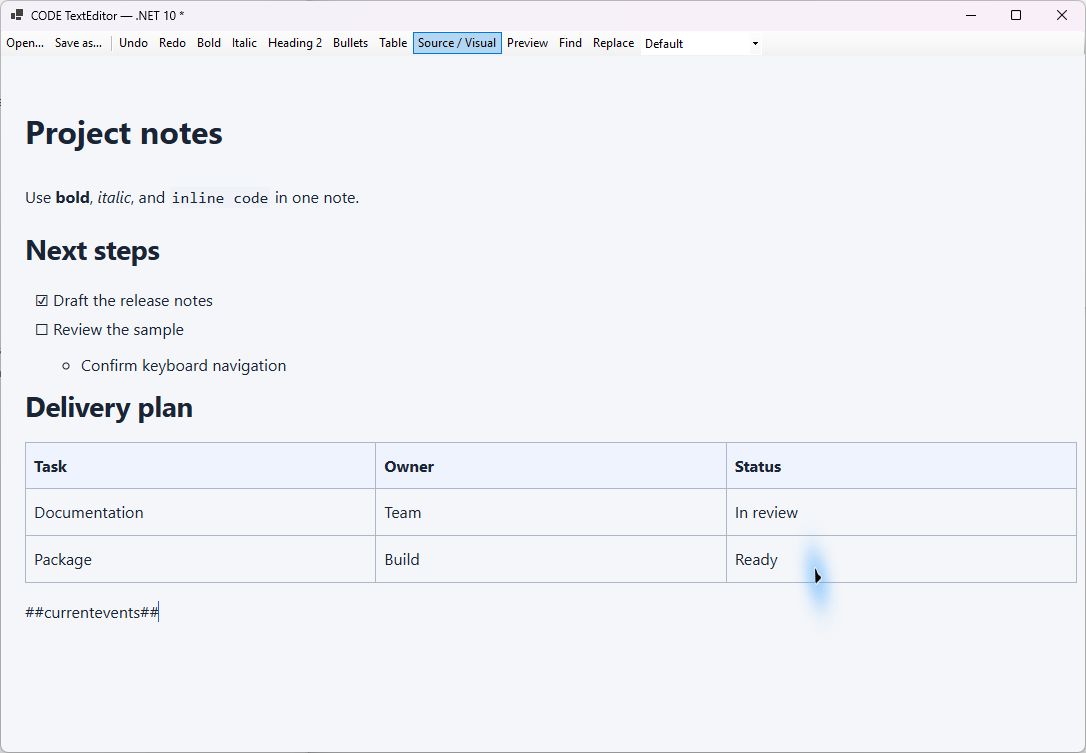
The running WinForms sample in Visual mode. The top toolbar belongs to the sample application; the reusable control supplies the editing surface, optional preview, and internal search UI. The note is the screenshot example.
Keyboard focus
TextEditor is a single tab stop by default. Set its TabIndex alongside the host's other controls; the embedded WebView2 is not a separate tab stop. The sample orders its toolbar before the editor. FocusEditorAsync() focuses both the native control and the editable surface. Window deactivation/reactivation preserves the active editor selection, including backward selections, and keeps an active internal search input focused. Other native controls retain their focus when they were active before switching windows.
In Source mode, Tab normally indents. Press Escape, then Tab to leave the editor; see editing and shortcuts. Hosts can configure TabIndents when ordinary Tab navigation is preferred. Focus restoration does not change the document or undo history.
Requirements and installation
Use a Windows Forms project targeting net10.0-windows, the .NET 10 Windows Desktop Runtime, and Microsoft Edge WebView2 Runtime. The project uses Microsoft.Web.WebView2 version 1.0.3537.50. There are no JavaScript package dependencies. The provided NuGet is a local preview package, not a public-feed release.
Open CODE.Editor.sln. The library is src/CODE.Editor.WinForms/ and the executable example is samples/CODE.Editor.Sample.WinForms/. Run ./build/build.ps1 to build and create artifacts/packages/CODE.Editor.WinForms.0.4.0-preview.2.nupkg. The package embeds every editor asset; consuming applications need neither this repository nor Node.js.
dotnet run --project samples/CODE.Editor.Sample.WinForms
For another project, add artifacts/packages/ as a NuGet source. Keep nuget.org or another source containing the WebView2 dependency enabled. A minimal consumer project is:
<Project Sdk="Microsoft.NET.Sdk">
  <PropertyGroup>
    <OutputType>WinExe</OutputType>
    <TargetFramework>net10.0-windows</TargetFramework>
    <UseWindowsForms>true</UseWindowsForms>
    <ImplicitUsings>enable</ImplicitUsings>
    <Nullable>enable</Nullable>
  </PropertyGroup>
  <ItemGroup>
    <PackageReference Include="CODE.Editor.WinForms" Version="0.4.0-preview.2" />
  </ItemGroup>
  <Target Name="RemoveUnusedWpfReference" BeforeTargets="ResolveAssemblyReferences">
    <ItemGroup>
      <Reference Remove="@(Reference)"
                 Condition="'%(Reference.Filename)' == 'Microsoft.Web.WebView2.Wpf'" />
    </ItemGroup>
  </Target>
</Project>
The small MSBuild target removes WebView2's unused WPF reference from this WinForms-only consumer; without it, the tested SDK reports a WindowsBase version-conflict warning. It does not remove the Core or WinForms WebView2 references. Omit/adapt it in an application that intentionally also uses WebView2's WPF control.
This repository also removes the unused WPF reference during project evaluation in Directory.Build.targets, so Visual Studio's Dependencies tree stays consistent with the build. Otherwise, a yellow WPF assembly warning can remain in Solution Explorer even when the build succeeds. Projects with UseWPF=true are excluded from that evaluation-time rule. WebView2 itself remains a NuGet package dependency.
Alternatively reference the class-library project. A bare DLL reference also requires deployment of the WebView2 managed assemblies/native loader; consuming the NuGet is simpler. No loose Editor folder, HTML files, or development server are needed for the reusable control.
Minimal application
This is a complete Program.cs for the project above:
using CODE.Editor.WinForms;

internal static class Program
{
    [STAThread]
    private static void Main()
    {
        ApplicationConfiguration.Initialize();
        Application.Run(new EditorForm());
    }
}

public sealed class EditorForm : Form
{
    private readonly TextEditor editor = new()
    {
        Dock = DockStyle.Fill,
        Format = EditorFormat.Markdown,
        ViewMode = EditorViewMode.Visual,
        Language = EditorLanguage.Markdown,
        Preset = EditorPreset.Notes,
        EditorText = "# A note\n\nHello from Olympus.",
        AccessibleLabel = "Note content"
    };

    public EditorForm()
    {
        Text = "CODE Editor";
        Width = 1000;
        Height = 700;
        Controls.Add(editor);
        editor.EditorError += (_, e) =>
            MessageBox.Show(this, e.Exception.Message, "Editor error");
        editor.SaveRequested += async (_, _) => await SaveAsync();
    }

    private async Task SaveAsync()
    {
        try
        {
            using var dialog = new SaveFileDialog
            {
                Filter = "Markdown (*.md)|*.md", DefaultExt = "md"
            };
            if (dialog.ShowDialog(this) != DialogResult.OK) return;
            var snapshot = await editor.GetSnapshotAsync();
            await File.WriteAllTextAsync(dialog.FileName, snapshot.Value);
            await editor.MarkSavedAsync(snapshot);
        }
        catch (Exception ex)
        {
            MessageBox.Show(this, ex.Message, "Save failed");
        }
    }
}
The control initializes when its handle is created. InitializeAsync() is available when you need to await readiness explicitly, and multiple callers share initialization. Pre-initialization option values and EditorText are applied during startup. Ready signals success; EditorError reports initialization or observed asynchronous failures.
Use the control on its owning UI thread. Do not call .Wait() or .Result on its asynchronous methods from that thread. In designer use, the control avoids starting the browser runtime.
Add a host-owned toolbar
The control supplies the editor, optional preview, and search popup. Your Form supplies menus, toolbar buttons, file dialogs, and persistence. For example, in a Form containing editor:
var bold = new ToolStripButton("Bold");
bold.Click += async (_, _) =>
{
    try
    {
        await editor.FormatSelectionAsync(TextMark.Bold);
        await editor.FocusEditorAsync();
    }
    catch (Exception ex) { MessageBox.Show(this, ex.Message); }
};
Use CommandStateChanged with QueryCommandStateAsync to update buttons. An enabled state is advisory; a structure/mode constraint can still reject an operation. For a dialog that keeps focus away longer, use a bookmark. The model retains selection when the toolbar takes focus; you do not need to manipulate browser selection directly.
Loading and saving
EditorText is a synchronous cache compatible with ordinary WinForms property usage. After initialization its setter schedules a load; it does not synchronously finish a WebView2 operation. Use SetEditorTextAsync or LoadAsync when subsequent work depends on completion. Use a validated snapshot for saving; a pending image or active composition can mean the cache is older than current interaction state.
await editor.LoadAsync("select * from Events;",
    EditorFormat.PlainText, EditorViewMode.Source, EditorLanguage.TSql);
editor.PreviewVisible = false;
LoadAsync is not an undoable edit. It resets history and bookmarks. See saving and state before implementing autosave or document switching.
Preview and content fonts
Set PreviewVisible = true to show the preview. Use PreviewCss for styles inside that preview only, and PreviewRequested for placeholder expansion or a custom renderer. The preview guide contains synchronous and asynchronous examples.
Use DisplayFontFamily/DisplayFontSize for surface presentation. To format rich content use SetContentFontAsync, SetContentColorAsync, and SetContentFontSizeAsync. Clean Markdown cannot store those attributes. The inherited WinForms Font property is not the JavaScript content-formatting API.
Deployment and lifetime
The class library serves embedded resources at a private virtual HTTPS origin. UserDataFolder controls the WebView2 profile; set it before initialization. The default profile is under Local Application Data in CODE/TextEditor/WebView2. LocalImageFolder, also set before initialization, can map a local asset directory; it does not itself store pasted images.
Dispose the Form/control normally. Pending native calls and import/preview work are canceled on disposal. Unexpected browser-process failure is reported rather than automatically recreating the session. Design application recovery around your saved document/draft; do not treat an old cached value as proof of a successful save.