
Editing behavior and keyboard shortcuts
Documentation index · Lists and tables
Source editing
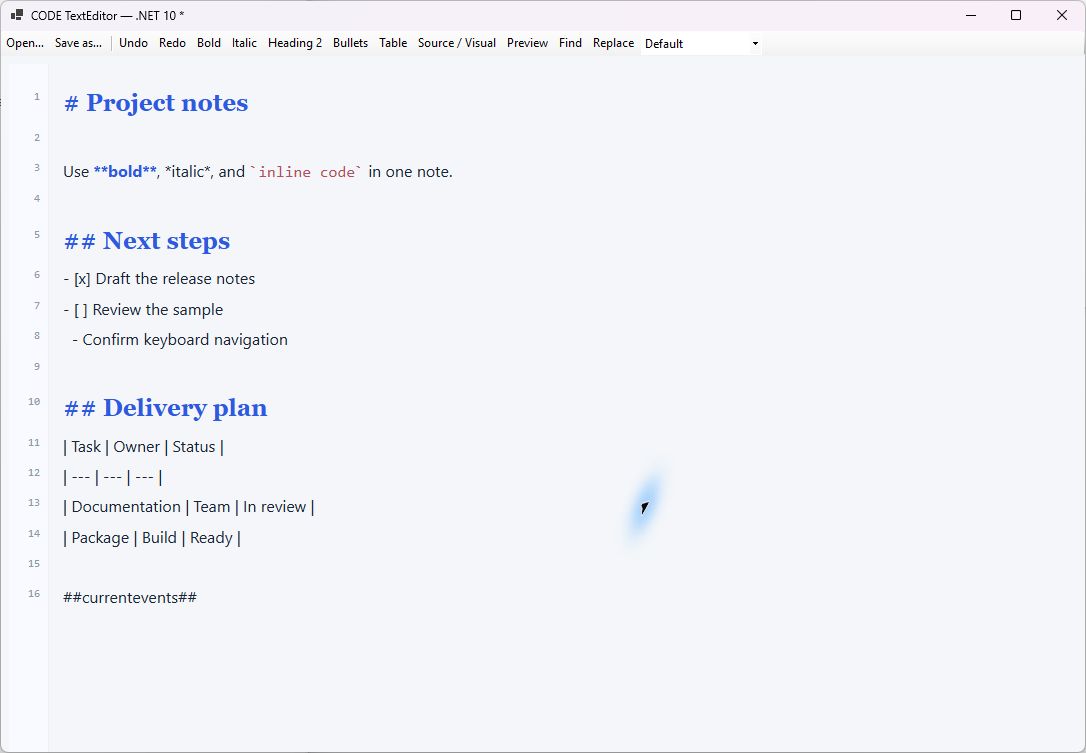
Source mode in the WinForms sample: the Markdown delimiters, task markers, and pipe-table syntax remain editable text. The same note is shown in Visual mode in the lists and tables guide.
Source mode edits the literal string. Syntax decoration can use different colors, weight, style, and typography without inserting formatting into that string. The current colorizers are lexical; they do not compile SQL/JavaScript or provide semantic diagnostics, completion, refactoring, or a language server.
Wrapping, syntax decoration, line numbers, tab width, and indentation style are independent options. A multi-line selection followed by Tab indents the selected lines instead of replacing the selection. Shift+Tab outdents. If the selection ends at the start of a line, that otherwise-unselected final line is excluded. With a single caret, indentation respects the configured tab stops. Enter carries source indentation.
Markdown Source supports Ctrl/Cmd+B and Ctrl/Cmd+I by inserting/removing Markdown delimiters. This changes source text and participates in undo. Current source-format commands support bold and italic. Keyboard shortcuts toggle the mark; C# FormatSelectionAsync(mark, enabled) and JavaScript execute('format', { mark, value }) also accept explicit true/false for idempotent on/off behavior. Omitting that argument toggles. See the JavaScript API for collapsed-selection behavior.
Visual editing
Visual mode edits a supported block/run model: paragraphs, headings, lists/tasks, quotes, code, thematic breaks, tables, and block images. Inline marks include bold, italic, underline, strike, code, and links. Font/color/size choices depend on the selected storage policy.
Toolbar commands act on the logical selection. With a collapsed selection, mark commands can affect subsequent typing. Raw preserved content is intentionally noneditable in Visual mode; use Source where allowed or explicitly convert the unsupported content.
Markdown-like input rules
With typing rules enabled, these are recognized in appropriate paragraph/list contexts:
| Typed pattern | Visual result |
|---|---|
# through ###### |
Heading of the corresponding level |
- , + , * |
Bulleted list |
1. and supported ordered markers |
Numbered list |
> |
Quote |
- [ ] or - [x] |
Task item |
| A supported triple-backtick or tilde fence followed by Enter | Code block |
| Completed emphasis, strong, strike or inline-code delimiters | Corresponding inline formatting |
These are input rules, not a separate full Markdown engine. Policy and context can suppress a transformation. They run during typing, not indiscriminately during load or paste. Undo can recover the literal typed marker from an automatic transformation.
Keyboard map
On macOS browsers, Cmd is used where the adapter recognizes the platform modifier. WinForms uses Ctrl.
| Keys | Behavior |
|---|---|
| Ctrl/Cmd+B, I | Bold/italic; Markdown delimiter commands in Source |
| Ctrl/Cmd+U | Underline in compatible Visual content |
| Ctrl/Cmd+Z | Undo |
| Ctrl+Y or Ctrl/Cmd+Shift+Z | Redo |
| Tab / Shift+Tab | Source indentation; list indentation or cell traversal in appropriate Visual contexts |
| Enter | Source auto-indent or Visual paragraph/list/cell behavior |
| Shift+Enter in a list | Continuation paragraph associated with the list item |
| Ctrl/Cmd+/ | Toggle line comments in SQL or JavaScript Source |
| Ctrl/Cmd+F | Find request; opens internal popup in WinForms |
| Ctrl/Cmd+H | Replace request; opens internal popup in WinForms |
| Ctrl/Cmd+G | Host shortcut event; the demo can offer go-to-line, but the WinForms control has no built-in go-to-line dialog |
| Ctrl/Cmd+S | SaveRequested event; the host performs persistence |
| Escape, then Tab in Source | Leave the editor's indentation keyboard interaction and move focus |
| Escape in a table/image context | Exit the structure where supported |
Ordinary selection, copy/cut/paste, and caret movement use browser/native behavior routed through the model adapter. Not all browser/platform shortcuts are intercepted. Avoid installing a host keyboard handler that consumes the same key before the editor receives it.
Find and replace
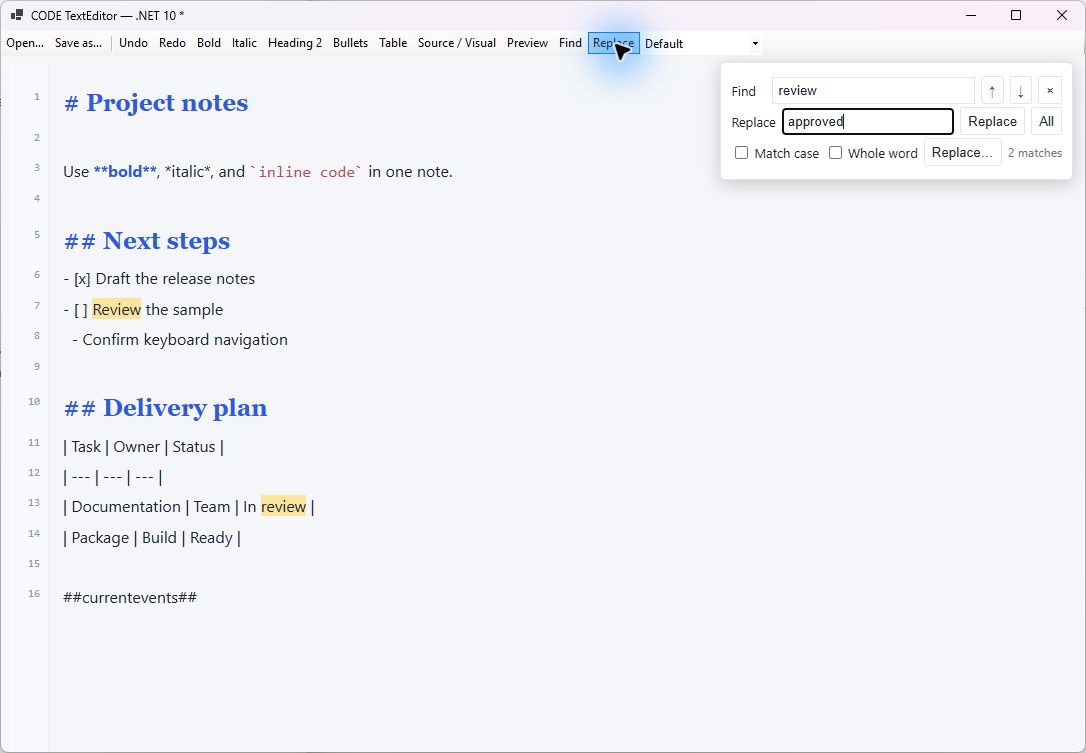
The WinForms control's internal search panel, with review highlighted in two places. The replacement field contains approved; no replacement has been applied in this screenshot. The All button performs Source-mode Replace All as one undoable operation.

The browser sample supplies its own find/replace bar above the editor. This capture uses the same search and replacement values, with two matches and no replacements applied. A custom JavaScript host supplies its own search UI using the component's search methods and shortcut events.
The search engine performs literal matching with optional case sensitivity and whole-word filtering. It returns flat UTF-16 ranges, and selectMatch selects/reveals a match. There is no regular-expression mode.
The WinForms popup supports find and individual replacement; Replace All requires Source mode. The browser demo also restricts its replacement UI in Visual mode. Rich single replacement is subject to editable-range constraints: spanning multiple table cells or raw content is not a generic replacement operation. Source Replace All is an undoable operation. Replacement text is literal, with no regular-expression capture substitution.
FindEnabled and ReplaceEnabled govern the WinForms popup. A custom JavaScript host decides what search controls to present; the editor emits shortcut events and exposes the search methods.
Read-only behavior and composition
Read-only blocks editing/history commands but still permits selection, copying, search, document loading, and preview. It is not access control against a host that owns the instance.
Composition is the multi-step text input used by IMEs and some mobile keyboards. The adapter avoids treating intermediate composition as committed document text. Operations that require committed content, such as snapshot retrieval or view switching, can reject while composition is active. Handle this as a temporary interaction state rather than deleting the user's partially composed text.
Focus and accessibility
Set a meaningful accessible label for every instance. Do not identify multiple editors only by a placeholder. The divider has a separator role and keyboard controls; line-number decoration is separate from the document. Native caret/selection behavior is used rather than a custom blinking caret. Screen-reader navigation, rich-list semantics, touch selection handles, and multilingual composition still require the platform checks listed in the test guide.