
Lists and tables
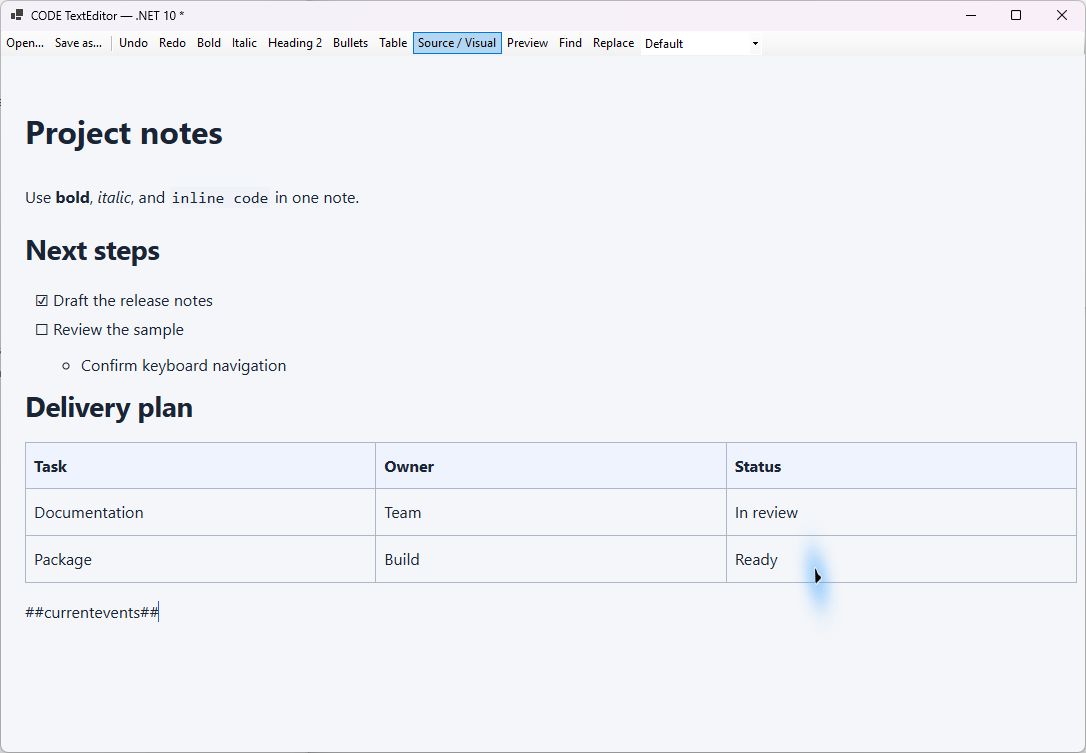
The example note rendered in the WinForms sample's Visual mode. Task items and their nested bullet list appear above a table with a header row. The application toolbar is sample UI, not part of the reusable editor.
Nested lists
Bulleted, numbered, and task lists support multiple indentation levels. The model records list relationships and continuation paragraphs rather than treating indentation as arbitrary styling. Indenting/outdenting an item also accounts for its descendants. A first item cannot become a child without a suitable preceding item. Policy can limit the depth through maxListDepth / MaxListDepth (0–8).
Enter normally continues the list. Enter on an empty item outdents or exits as appropriate. Shift+Enter creates a continuation paragraph associated with the item. Backspace at a list/heading boundary can outdent or restore a paragraph rather than deleting unrelated structural markup.
editor.execute('heading', { type: 'ul' });
editor.execute('indent');
editor.execute('outdent');
editor.execute('restartNumbering', { start: 3 });
editor.execute('toggleTask');
await editor.SetBlockStyleAsync(BlockStyle.NumberedList);
await editor.ExecuteAsync(EditorCommand.Indent);
await editor.RestartNumberingAsync(3);
List commands operate in the appropriate Visual context. In Source mode, indent/outdent modifies source whitespace; it does not perform a semantic restructuring of an arbitrary Markdown list. Complex nested constructs should be included in your document corpus tests.
Pipe tables in Markdown
Browser table editing
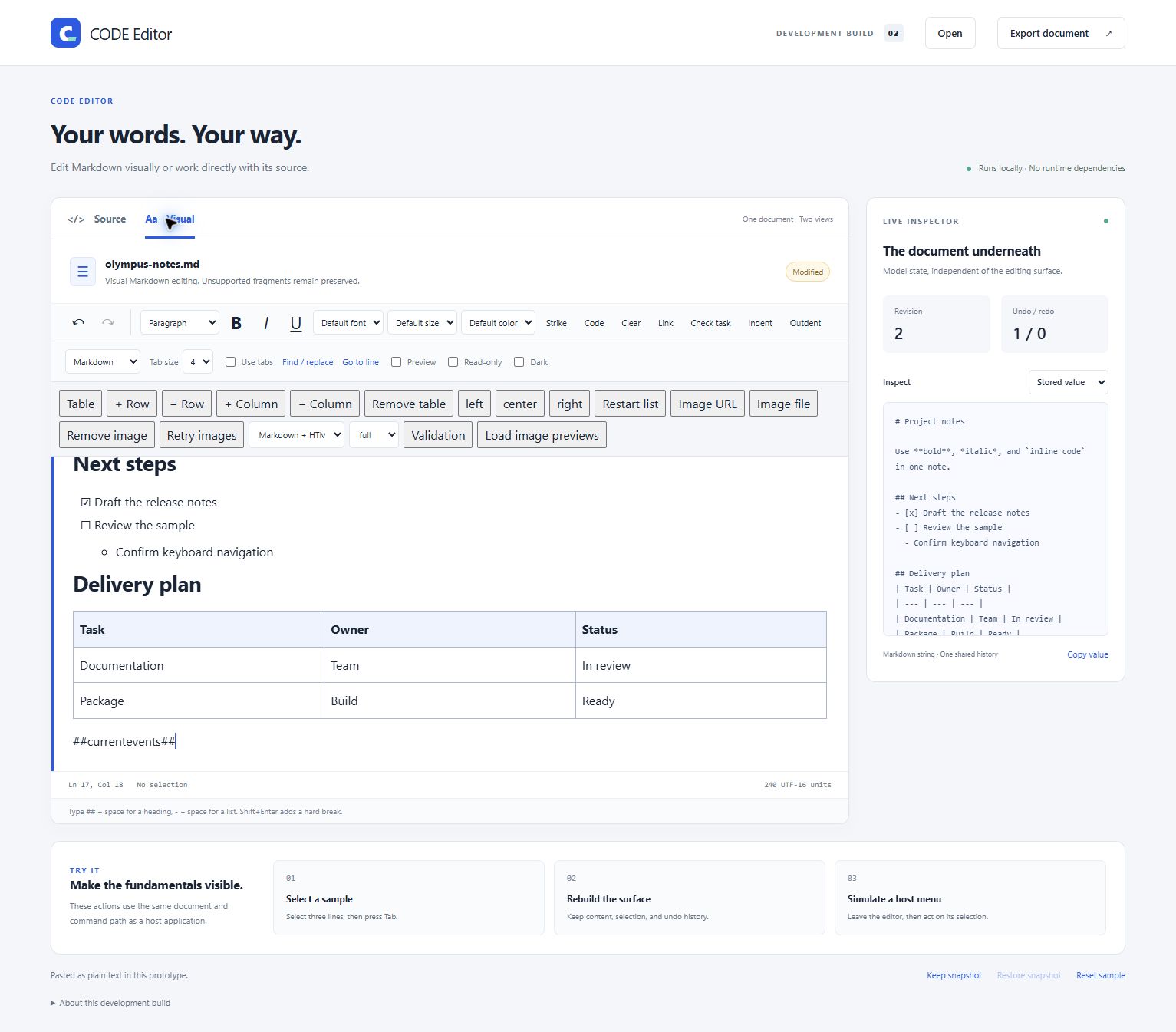
The same note in the browser sample, scrolled within the editor to expose the full table. The sample's feature toolbar provides row/column operations and alignment commands. The inspector still displays the stored Markdown, separately from the rendered table.
Supported pipe-table syntax
Markdown tables use a header row, separator row, and rectangular body rows:
| Name | Status | Count |
| :--- | :---: | ---: |
| Planning | Open | 3 |
| Review | Done | 12 |
The separator establishes per-column left/center/right alignment. The first row is treated as the header. The visual model represents individual cells with table/row/column metadata. HTML storage serializes supported tables as HTML table elements.
Supported cells contain inline content. They do not support arbitrary nested tables, merged cells, multi-paragraph layout, embedded block images, or individually adjustable column widths. If an imported table cannot be represented, the unsupported-content policy applies. Do not assume arbitrary pasted spreadsheet/Word table HTML will reproduce its full original layout.
Commands
| Operation | JavaScript | WinForms |
|---|---|---|
| Insert | execute('insertTable', { rows: 3, columns: 3 }) |
InsertTableAsync(3, 3) |
| Insert row | execute('insertRow', { before: true }) |
InsertRowAsync(true) |
| Insert column | execute('insertColumn', { before: false }) |
InsertColumnAsync(false) |
| Delete row | execute('deleteRow') |
ExecuteAsync(EditorCommand.DeleteRow) |
| Delete column | execute('deleteColumn') |
ExecuteAsync(EditorCommand.DeleteColumn) |
| Delete table | execute('deleteTable') |
ExecuteAsync(EditorCommand.DeleteTable) |
| Align current column | execute('alignColumn', { align: 'right' }) |
AlignColumnAsync(TableAlignment.Right) |
| Exit structure | execute('exitStructure') |
ExecuteAsync(EditorCommand.ExitStructure) |
| Paste TSV | execute('pasteTSV', { text: tsv }) |
PasteTsvAsync(tsv) |
JavaScript insertion defaults to 3×3 when dimensions are omitted. The typed WinForms method defaults to 2×2. Explicit dimensions avoid the difference. The insertion API accepts 1–200 rows and 1–50 columns; this is a structural bound, not a performance target for every device.
Commands act on the current table/cell selection, not an arbitrary table ID passed by the host. Query command state for UI hints, and still handle command rejection when no valid table context exists.
Cell navigation
Tab advances to the next cell; Shift+Tab goes backward. At the end of a table, forward navigation can add a row. Enter advances through cells rather than introducing an arbitrary multi-paragraph cell. Vertical navigation follows the column where handled by the structure adapter. Escape provides a way to leave the structure.
An ordinary text replacement is confined to a valid editable range. Replacing a selection across unrelated table cells is rejected instead of silently flattening the table. Use structural commands for row/column deletion. Copying a complete table preserves its structure; a partial-cell selection may be copied as paragraphs.
TSV import
Tab-separated values use tabs for cells and line breaks for rows. Pasting through the explicit TSV command creates or expands a rectangular table in a supported Visual context. For example:
await editor.PasteTsvAsync("Product\tQuantity\nEditor\t2\nPreview\t1");
This is not an Excel file importer. Formula evaluation, cell types, merged ranges, styles, and multiline quoted spreadsheet cell formats are outside its contract. Keep file parsing and data preparation in the host.
Serialization and undo
Table/list commands participate in editor history. A whole structural operation should be treated as a model edit, not a sequence of direct DOM manipulations. Serialization can normalize list markers, indentation, table pipes, and alignment syntax after edits. Keep Source view available when technical authors need to inspect the serialized representation, subject to your policy.